Most of the time if your content protection is failing to work, it is due to an incorrect setup or a plugin conflict. There are a few common reasons for content protection to not work. I will outline them in this documentation. Go through it and see if it applies to your situation.
Table of Contents
- Test Content Protection
- Reason #1: Ensure You are Protecting the Correct Content
- Reason #2: Misconception About the Category Protection Option
- Reason #3: Misunderstanding How Overall Content Protection Works
- Reason #4: More Tag Protection
- Reason #5: A Plugin Adding Below Post Content
- Reason #6: Plugin or Theme Conflict
- Reason #7: A Page Caching Issue on the Site
Test Content Protection
To test the membership functionality on your website, use a different browser than the one you’re currently logged into as admin. Join as a member through the registration process and attempt to view the content that is only accessible to that membership level. Any content that is meant to be hidden from the public should not be visible. Make sure to visit your site as a non-member to confirm that hidden content is not accessible to unauthorized users.
If you encounter any errors during the testing process, please refer to the following checklist items in this documentation to assist you in resolving the issues on your website.
If you find problems with content protection on your website we recommend creating a test page which you protect from the public and only allow a certain membership level to view. Log in as a member for that membership level and ensure only you can view that protected content.
Reason #1: Ensure You are Protecting the Correct Content
Some sites have multiple posts or pages with similar or the same titles. Ensure you have selected the correct document to be protected. View your pages menu in the dashboard to see if there are any similar pages that you may have confused with the one you were initially attempting to protect.
Another idea is to write a note to self in the title of your protected documents. This may include writing a (p) after the name of that post. Eg How to Bake a Birthday Cake (p) or How to Bake a Birthday Cake (protected). This eliminates any confusion when marking which documents you would like to protect.
Example: General Confusion between two documents with similar titles.

Reason #2: Misconception About the Category Protection Option
First and foremost you must protect all content you do not want outside visitors to be able to view. Within the ‘Category Protection’ tab, next to the membership level, choose ‘General Protection’ from the drop down menu. Select all categories that you wish to hide from the outside public (this should include the ones that you wish for certain members to view). Ensure you update the changes you have made.

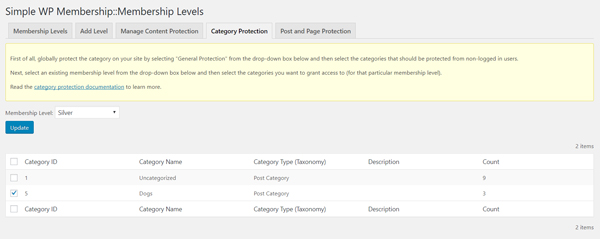
After you have protected all the categories that you want only members to view you are ready to move on. Select the membership level that will view the category from the drop down menu (for example silver). Then select the category that you wish for you silver members to be able to have access to. Ensure you click update. Now only silver members will be able to view this content.
When protecting content by category this allows that membership level to view all posts under that category. For example, if I have a category titled ‘Dogs’ and I have three posts under this category titled ‘Bulldogs’, ‘Labradors’ and ‘Border Collies’, by protecting the category ‘Dogs’ I am protecting all of the three posts from non-members. By granting access to a member level to view the category ‘Dogs’, I am also allowing them to view all the pages under this category.
The category protection option is great to protect a bulk number of posts that belong to a certain category but we advise you choose to either protect content by category or by individual post/page. The use of both at the same time can cause confusion (if you are just starting out). It is recommended to learn the plugin well before attempting to apply protection by category and by individual posts and pages at the same time.
Example: Protecting Categories from the General Public

Example: Allowing a Certain Membership Level to View Specific Categories
Reason #3: Misunderstanding How Overall Content Protection Works
Often users of this plugin attempt to protect content without reading the documentation on how to correctly create a membership site. Ensure you read the documentation on how to use this plugin prior to creating membership levels and hiding content. The ‘How to Apply Content Protection‘ documentation should resolve any further misunderstandings on content protection.
It is important to know that checking the ‘hide content’ box does not make the title of the content invisible to site visitors. The plugin mainly hides the actual content (the body of the post/page).
Reason #4: More Tag Protection
More tag protection only works on a post where content protection is applied. More tag is intended to be used on a WordPress post (not pages). You can use the section protection feature to hide section/part of a post or page to create teaser sections (if you want to).
Reason #5: A Plugin Adding Below Post Content
Some plugins add some content below the actual post content section of WordPress. The standard protection will fail to see that content since it is outside the WordPress’s post content area. The full page protection addon will help you in those scenarios.
Reason #6: Plugin or Theme Conflict
You should do the plugin and theme conflict test to make sure there is no conflict that is contributing to the issue.
Reason #7: A Page Caching Issue on the Site
The membership functionality requires a dynamic page to be displayed to members. However, a cached page only shows a static version of the page that cannot be customized based on the user’s login status. This means that our plugin cannot apply the necessary conditions to the cached page, causing issues with membership type setup. Essentially, membership type sites require more advanced functionality than a blog type site, which is why cached pages are not suitable for displaying dynamic content tailored to each user’s membership status.
We have some support for the following WordPress caching plugins (if you are already using any of them then read the instructions and adjust the settings of the corresponding plugin):