If you offer a premium membership with a one-time purchase option, you may want to allow your users to renew their membership.
Renewal payment buttons are exactly the same as the standard membership payment buttons. When logged-in members make a payment for their existing membership level, their account access is extended. The key difference is that members do not need to go through the registration process again, as they are already registered.
Table of Contents
- Setting Up a Membership Renewal System
- How Renewal Payment Logic is Managed
- Renewal Email Notification
- Additional Related Documentation
Setting Up a Membership Renewal System
The following guide explains how to set up a renewal system, allowing your members to easily renew their memberships:
Step 1) Navigate to the “Advanced Settings” tab in the Simple Membership plugin:

Step 2) Enable the “Enable Expired Account Login” option and save the settings.
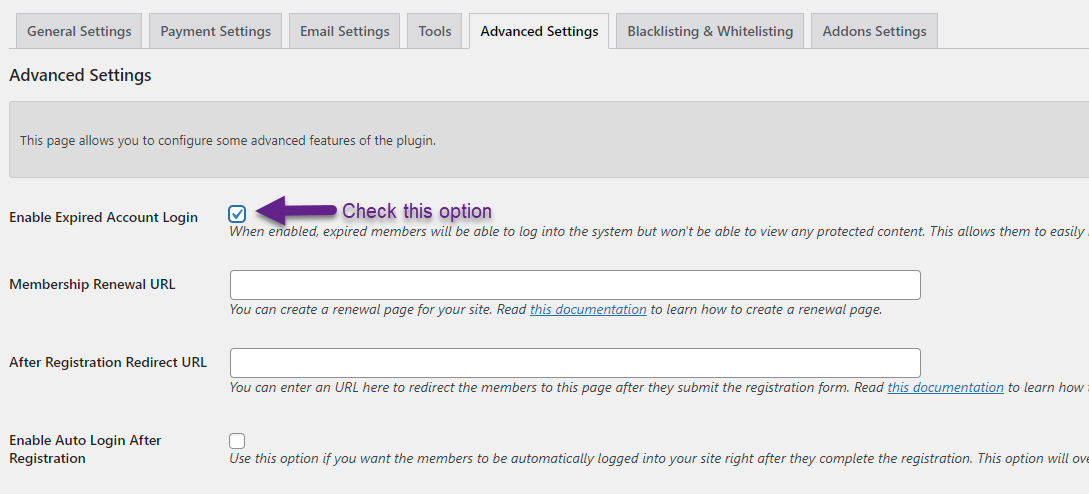
This option allows users to log into the system even if their account has expired or is inactive. While they won’t have access to protected or restricted content, logging in enables the system to recognize their account and apply payments to their profile.
Step 3) Create a WordPress page called something like “Membership Renewal”.
Step 4) Add your renewal payment buttons on this newly created page. You can create the renewal payment buttons exactly the same way you created the normal membership payment buttons. You can even re-use the existing payment buttons (if you want to). If a member makes a payment for their current membership level, it will be treated as a renewal.
Use the payment button shortcodes provided by our plugin to create renewal buttons. Alternatively, you can utilize any of the supported payment methods detailed in the Membership Payment Options section of the documentation.
Step 5) Protect or hide the “Membership Renewal” page to ensure members must log in before making a payment. Once logged in, the plugin can seamlessly match the payment to the member’s profile and update their membership after renewal.
Step 6) Specify the URL of this newly created page in the advanced settings tab of the plugin and save the settings:
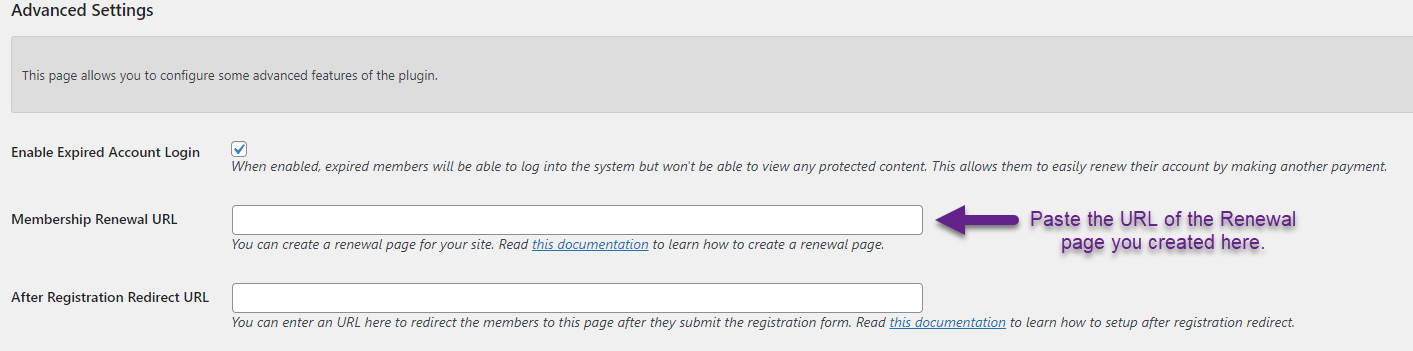
Your existing members can now log into the site, navigate to the renewal page, and renew their membership. When a logged-in user makes a payment, it will be applied directly to their existing membership account.
Expired members attempting to access a protected post or page will see a message similar to the following. Clicking the ‘Renew’ link in the message will redirect them to your site’s renewal page.

Which Payment Methods Can Be Used for Renewal?
You can use any of the supported payment methods listed in the Membership Payment Options section of the documentation. All available membership payment options are listed in our main documentation. You can use any of these methods to create your membership renewal button.
How Renewal Payment Logic is Managed
If the payment corresponds to a membership level already present in the user’s profile, it is treated as a renewal. This section outlines how the renewal payment logic is managed.
Payment Received After the Account Has Expired
If the user’s account is already marked as “expired” or “inactive” when the payment is received, the new payment will reactivate the account and grant access to the paid membership level.
Payment Received Before the Account Has Expired
If an existing member makes a payment while their account is still active, the plugin applies specific logic to determine whether adjustments are needed to the membership expiration date to extend access. This logic is based on the membership level settings you have configured.
1) No Expiry Access Duration
If you have set the membership level to a “No Expiry” configuration, then the account will maintain its access without any changes. There is no need to update the account’s expiration condition.
2) Expire After Access Duration
When a member renews or pays for their membership before their account has expired, the “Access Starts” time is adjusted to the end of the current term if the membership level is set to “Expire After Access Duration.” The plugin extends the current membership term by adding time to the end, ensuring that the member does not lose any time for the current term.
The member will maintain access to the membership level until the new expiry time expires.
3) Fixed Date Expiry Access Duration
If the membership level is set to a “Fixed Date” expiry configuration, the account will expire on the specified date, regardless of any new payment made. The member’s expiry condition will not be affected by the new payment.
Renewal Email Notification
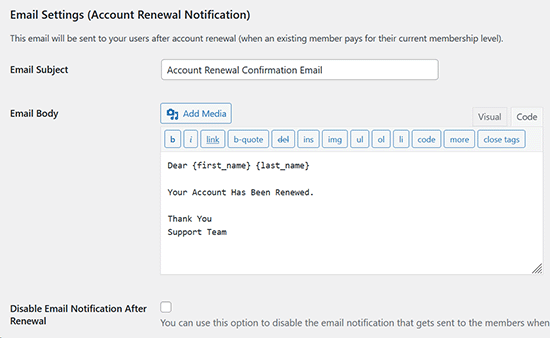
When a member makes a payment for their current membership level, it is treated as a renewal. In this case, the plugin will send the email configured in the “Account Renewal Notification” section of the email settings.
You can customize this renewal email by going to the Email Settings menu of the plugin.
If you don’t want to send a notification after a renewal, you can disable it by checking the “Disable Email Notification After Renewal” option.
Refer to the screenshot below for a visual reference of these settings.
Additional Related Documentation
The related documents listed below will be very beneficial for you to read and learn about the membership system.
Manually Activating an Expired Account
If you want to learn how to manually activate an expired member’s account, read this documentation.
Membership Upgrade Payment Buttons
To learn more about how the plugin handles membership upgrade payments, please refer to this documentation.
What Happens if a Subscription Payment is Cancelled
If you are using a recurring payment model for your memberships, then refer to this documentation to learn more about what happens when a subscription payment is cancelled.
Managing Orphaned Subscriptions
Read the orphaned subscription management documentation.