When you refund a payment from your PayPal or Stripe account, Simple Membership receives a notification from the payment gateway and updates the payment record and the member account automatically. This page explains what happens by default and how you can change it.
Table of Contents
- The Default Behavior
- When the Account Is Not Changed
- Keeping the Account Active After a Refund
- Things to Know About Subscription Refunds
- Partial Refunds
- Reactivating an Account Manually
- Requirements
- For Developers
The Default Behavior
When a refund notification is received:
- The payment is marked as “Refunded” in the Payments menu of the plugin.
- The member account is set to “Inactive”, so the member loses access to protected content.
This happens for both one-time payments and subscription payments. Unlike a subscription cancellation, a refund does not depend on the membership level’s access duration settings. The account is deactivated as soon as the refund is processed.
When the Account Is Not Changed
The plugin only deactivates the account when the refunded payment is the one that gives the member their current access.
For example, if a member bought a membership, later bought a new one, and you then refund the first payment, the refund is recorded but the member keeps the access they got from the newer payment.
Keeping the Account Active After a Refund
If you prefer that members keep their access when you issue a refund (for example, when you give a goodwill refund), you can change this in the plugin settings:
- Go to WP Membership → Payments → Payment Settings.
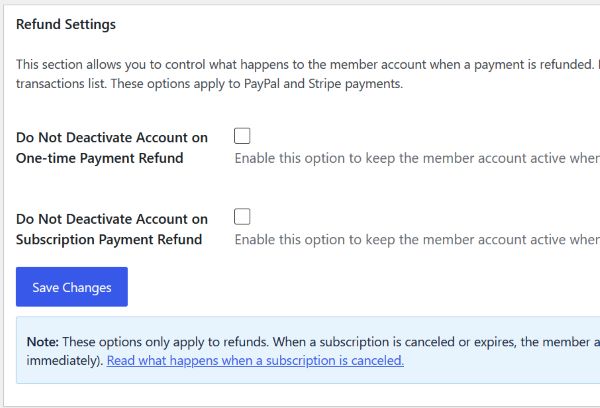
- In the General tab, find the Refund Settings section.
- Check one or both of the following options:
- Do Not Deactivate Account on One-time Payment Refund
- Do Not Deactivate Account on Subscription Payment Refund
- Click Save Changes.
With an option enabled, the payment is still marked as Refunded in the Payments menu, but the member account status is not changed.
Things to Know About Subscription Refunds
- A refund does not cancel the subscription. If you want to stop future payments, cancel the subscription in your PayPal or Stripe account as well. The cancellation is then handled as explained in What Happens When a Subscription Is Cancelled.
- The next payment can reactivate the account. If you refund a subscription payment but don’t cancel the subscription, the member’s account is updated again when the next subscription payment is received.
Partial Refunds
At the moment, a partial refund is handled the same way as a full refund. If you regularly issue partial refunds and want members to keep their access, enable the relevant option in the Refund Settings section.
Reactivating an Account Manually
If an account was deactivated by a refund and you want to restore access, go to WP Membership → Members, edit the member’s profile, set the Account Status to Active, and save.
Requirements
Refunds are processed automatically only when the plugin receives notifications from the payment gateway. Make sure the PayPal webhooks or Stripe webhook are set up for your site as explained in the payment gateway setup documentation.
For Developers
You can use the swpm_deactivate_account_on_refund filter hook to apply your own refund policy. Return true to deactivate the account, or false to keep it active.
add_filter( 'swpm_deactivate_account_on_refund', function ( $deactivate, $member_id, $refund_data, $refund_payment_type ) {
    // $refund_payment_type is either 'one_time' or 'subscription'.
    // Example: never deactivate on subscription payment refunds.
    if ( $refund_payment_type === 'subscription' ) {
        return false;
    }
    return $deactivate;
}, 10, 4 );
The Refund Settings options and this filter hook are available in Simple Membership version [v4.8.6] and later.