When using Stripe webhooks with the Simple Membership plugin, you need to copy the Webhook Signing Secret from your Stripe account and paste it into the plugin’s settings. By adding this signing secret to your plugin settings, the plugin can cryptographically verify that webhook events received from Stripe are authentic and have not been tampered with.
Note: If you haven’t yet created a webhook in your Stripe account for your subscription buttons, please follow this documentation first to create one: Create a Webhook in Your Stripe Account.
Table of Contents
Stripe Webhook Signing Secret
Follow the steps below to configure Stripe webhook signing secret.
Step 1: Get the Webhook Signing Secret from Stripe
Before you can paste the secret into the plugin, you need to grab it from your Stripe Dashboard.
- Log in to your Stripe Dashboard.
- Click on the Developers tab (usually in the top right) and select Webhooks from the left-hand sidebar.
- Click on the specific Endpoint URL you have created for your site (e.g., https://yourdomain.com/?swpm_process_stripe_subscription=1&hook=1).
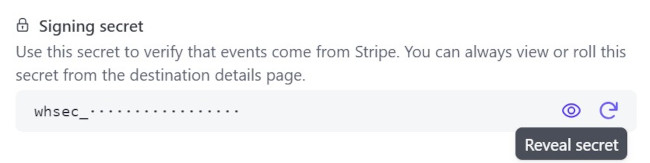
- In the Signing secret section, click the Reveal button.
- Copy the string that starts with whsec_.
Example Screenshot: See the following screenshot for an example:
Step 2: Paste the Signing Secret into the Plugin
Now that you have the key, you just need to tell the Simple Membership plugin to use it.
- Log in to your WordPress admin dashboard.
- Navigate to: Payments → Payment Settings → Stripe Settings.
- Scroll down the page until you find the field labeled: Webhook Signing Secret Key.
- Paste the secret (the whsec_… string) into that field.
- Scroll to the bottom and click Save Settings.