Membership Plugin

WordPress Membership Plugin

  • Home
  • Documentation
  • Addons
  • Support
    • Quick Setup
    • Documentation
    • Premium Addon Support
    • Paid Support
    • Support Forum
    • Support Forum Search
    • Forum Login
    • Forum Registration
  • Contact

How to Create a WordPress Admin User via PHPMyAdmin

If you’ve lost access to your WordPress admin account or the admin account is no longer working properly, you can manually create a new admin user directly in the database using PHPMyAdmin. Once the new admin user is created, you’ll be able to log in to your WordPress dashboard using that account and make necessary adjustments – such as resetting the password or fixing the user role of the original admin account.

Warning: Editing your database directly can be risky. Make sure to create a full database backup before making any changes.

Step 1: Access PHPMyAdmin

  • Log in to your web hosting control panel (e.g., cPanel, DirectAdmin).
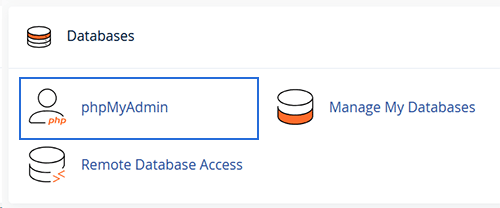
  • Open PHPMyAdmin from the database section.
Step 2: Select Your WordPress Database

  • In the left sidebar of PHPMyAdmin, click on the database that your WordPress site uses.

Step 3: Open the wp_users Table

  • Find the table called wp_users (note: your table prefix may be different, such as wpabc_users).
  • Click on the Insert tab to add a new row.

Step 4: Add a New Admin User

Fill out the fields as follows:

  • user_login: newadmin (or any username you want)
  • user_pass: Enter your password here. Select MD5 in the “Function” dropdown to encrypt it.
  • user_nicename: New Admin
  • user_email: you@example.com
  • user_url: https://yourdomain.com
  • user_registered: Enter the current date and time (e.g., 2025-05-06 12:00:00)
  • user_activation_key: Leave this blank
  • user_status: 0
  • display_name: New Admin

Click Go to insert the new user.


Step 5: Note the New User ID

  • After inserting, go back to the wp_users table and find the ID of the new user you just created. You’ll need this for the next step.

Step 6: Open the wp_usermeta Table

  • Find and open the wp_usermeta table.
  • Click on the Insert tab and add this entry.

Use the following details (replace 5 with the actual user ID from step 5):

  • user_id: 5
  • meta_key: wp_capabilities
  • meta_value: a:1:{s:13:"administrator";b:1;}
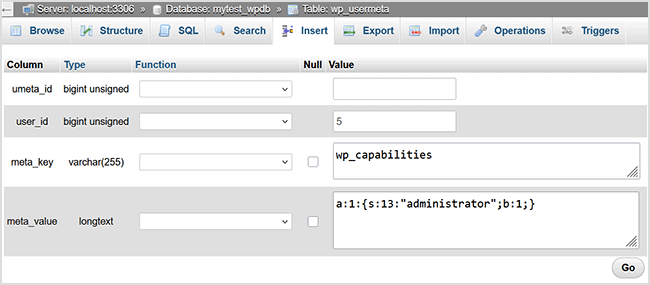
    Click Go to save.


    Step 7: Log in with the New Admin Account

    • Go to your login page: https://yourdomain.com/wp-login.php
    • Use the new admin username and password you just created.

    Final Notes

    Once you’re logged in with the new admin account, you can:

    • Reset passwords for other admin users.
    • Adjust roles and capabilities for affected accounts.

    Filed Under: Troubleshooting Related

    Error 500 Internal Server Error – How to Solve The 500 Error

    An Error 500 is not caused by the plugin but rather by an issue with your website’s hosting. It means that your server is blocking an action that the plugin is attempting to perform.

    Check your server’s error_log file which should have more information about the error. Request the hosting provider to send you the error_log file/message from your server so we can see the details of the critical error. That will give us more details as to what exactly is failing on this server.

    Since your hosting provider has access to the server logs, they are best equipped to diagnose and resolve the issue. The most effective way to address an Error 500 is to contact your hosting provider. They can review the server logs to identify the exact cause of the internal server error and provide a solution.

    Filed Under: Troubleshooting Related

    WP Top Toolbar or Admin Bar Related Issues

    The WP Toolbar (also known as the admin bar) is a core feature of WordPress user settings. The Simple Membership Plugin does not modify it unless specific settings within the plugin are enabled.

    Please check the following settings in the plugin:

    Settings → Advanced Settings → WP Toolbar and Admin Dashboard Related

    Ensure that none of the toolbar-related options are enabled in this section. These settings are disabled by default, so if they are affecting the toolbar visibility, it’s likely that they were manually enabled at some point.

    Filed Under: Troubleshooting Related

    Please read this message before using our plugin.

    Search

    Featured Addons and Extensions

    • Membership Form Builder Addon
    • Member Directory Listing Addon
    • WooCommerce Payment Integration
    • Member Data Exporter Addon

    Documentation

    • Documentation Index Page

    Copyright © 2026 | Simple Membership Plugin | Privacy Policy