If you are utilizing subscription payment methods for your memberships through PayPal PPCP or Stripe SCA subscription buttons, the feature described on this page may be beneficial for you.
Note: The shortcode described on this page is compatible with the New PayPal API and the New Stripe API options only. It does not support the old/legacy/classic options.
Table of Contents
- Display Active Subscription(s) and Cancel Option
- Display Both Active and Inactive Subscriptions
- Troubleshooting Related
- Redirect After Subscription Cancellation
- What Happens When a Subscription is Cancelled?
- Managing Orphaned Subscriptions
- Displaying a Message to Members with an Active Subscription
Display Active Subscription(s) and Cancel Option
You can implement the shortcode below on any page to display all active subscriptions associated with a logged-in member’s profile. This shortcode also provides a cancellation option, allowing members to cancel their subscriptions themselves.
[swpm_show_subscriptions_and_cancel_link]
The screenshot below displays what members will see if they have any active subscriptions.

The member can click on the Cancel Subscription button to initiate the subscription cancellation.
Display Both Active and Inactive Subscriptions
To display all subscriptions (both active and inactive), add the show_all_status=1 parameter to the shortcode. This modification allows the shortcode to show all subscriptions associated with the logged-in member’s profile. Below is an example of how to implement this parameter in the shortcode:”
[swpm_show_subscriptions_and_cancel_link show_all_status=1]
Troubleshooting Related
Review the checklist below to ensure you are addressing these items:
- This shortcode works for the new PayPal PPCP API Subscription and the new Stripe SCA Subscription buttons.
- If the Stripe subscriptions are not displaying correctly, please edit the relevant Stripe subscription button and verify the API ID value being used. The API ID should begin with ‘price_’. If it does not, you are using a deprecated old option. Refer to our Stripe subscriptions documentation to create a new subscription button that replaces the outdated one.
Redirect After Subscription Cancellation
If you want to redirect users to a specific URL after they cancel a subscription using the cancel button, you can use the redirect_to_after_cancel parameter in the shortcode. Below is an example:
[swpm_show_subscriptions_and_cancel_link redirect_to_after_cancel="https://example.com/url-after-sub-cancel"]
The user will be automatically redirected to the specified URL after they click the cancel button and the subscription is successfully cancelled.
What Happens When a Subscription is Cancelled?
Read the what happens when a subscription is cancelled documentation.
Managing Orphaned Subscriptions
Read the orphaned subscription management documentation.
Displaying a Message to Members with an Active Subscription
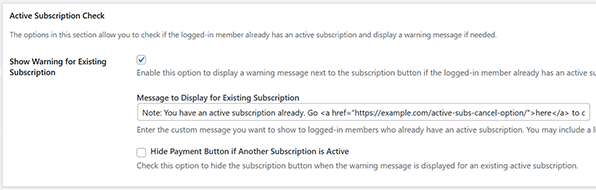
To help prevent members from accidentally purchasing duplicate subscriptions, you can enable the “Show Warning for Existing Subscription” option when editing a subscription button.
When this option is enabled, logged-in members with an active subscription will see a warning message. You can customize this message to inform them that they already have a subscription and may wish to cancel it before purchasing a new one.
See the screenshot below for an example of how it looks on the front-end.
