The Active Login Limit feature in the Simple Membership plugin allows you to restrict the number of simultaneous active logins for each user. This is particularly useful for preventing account sharing, ensuring that each member account is only accessed by the allowed number of active logins set in the settings.
Table of Contents
- How Active Login Limit Works
- Login Attempts vs Active Sessions (Important)
- How to Enable Active Login Limit
- Testing the Active Login Limit Feature
- An Additional Method to Prevent Account Sharing
How Active Login Limit Works
When the active login limit feature is enabled and you set a maximum login limit number, the plugin will count how many active sessions exist for that user at the time of login. If the active login limit is reached, any new login will automatically terminate all active sessions of the user from other browsers or devices. As a result, only the new login will remain active, while old logins from other browsers or devices will expire.
Login Attempts vs Active Sessions (Important)
The active login limit controls how many sessions can remain active at the same time. It does not limit how many times a member can successfully submit the login form.
For example, when the limit is set to 1, the same member may still log in again from another browser or device. However, the new login replaces the previous session, and the member’s earlier session is invalidated. Therefore, only the most recent session remains active.
This behavior also helps protect the legitimate account owner. If another person obtains the member’s login details, that person cannot prevent the account owner from logging in simply by keeping a session active. The legitimate member can log in again, which invalidates the previous session. If unauthorized access is suspected, the member should also change their password immediately.
Important: When testing this feature, do not judge the result only by whether the second login succeeds. After completing the second login, return to the first browser or device and refresh a protected page. The earlier session should no longer have access and should be required to log in again.
How to Enable Active Login Limit
To enable the Active Login Limit feature, start by going to the Simple Membership settings in your WordPress dashboard.
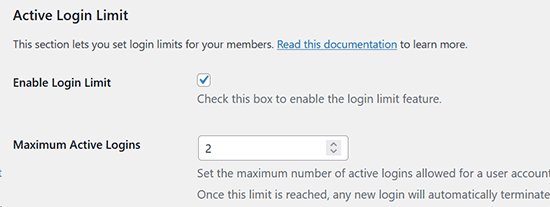
- Within the “Advanced Settings” tab of the settings menu, locate the “Active Login Limit” section.
- Enable the feature by checking the “Enable Login Limit” checkbox.
- Use the “Maximum Active Logins” field to specify the maximum number of active logins allowed per user.
- Click “Save Changes” to apply the settings.
Refer to the screenshot below for details on this settings option.
Testing the Active Login Limit Feature
For testing purposes, you can set the active login limit to 1. Then open a new browser where you are not logged into any account (for example, you can use an incognito browser to test this). Log into a member account from the Simple Membership plugin’s login page. Then from another device, log into the same account. Now, if you go to the device/browser where you logged in first and click anywhere on the site, you will see that the login session has expired.
When you reload the page or navigate to another, the previously logged-in browser or device will display a message like the following:

An Additional Method to Prevent Account Sharing
If you are concerned about account sharing on your membership site, you can explore the option to use our Two Factor Authentication (2FA) addon.