You can automatically signup your members to a specific list in Your MailChimp account. This will allow you to communicate (example: broadcast emails) with your members easily.
Table of Contents
- How Does This Integration Work?
- Using the MailChimp Integration Addon
- Using MailChimp Interest Groups
- Troubleshooting MailChimp Signup Issues
- Explore All Addons/Extensions
How Does This Integration Work?
When a user completes the membership registration process on your website, their email address is automatically added to the list that you specify.
- A user visits your site and registers for a membership account.
- The member’s email address is added to the list.
- At a later time, you have the option to send email campaign messages to this user.
Using the MailChimp Integration Addon
To enable automatic Mailchimp signup for your members, follow these steps:
Step 1 (Install the Plugin)
Download and Install the Simple Membership MailChimp Integration addon.
Step 2 (Go to Settings Interface)
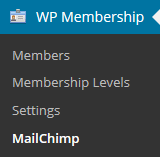
Click on the “MailChimp” menu from the simple membership plugin’s admin interface.
Step 3 (Specify API Key)
Enter your MailChimp API key and save the details. You can get your MailChimp API key from your MailChimp account. If you can’t find it yourself, ask the MailChimp support team and they will be able to help you with your API key.

Step 4 (Specify MailChimp Audience/List)

Now, you can specify your MailChimp Audience name by going to the following interface:
WP Membership -> Membership Levels
When adding or editing a membership access level, you can specify an Audience name (formerly MailChimp List Name) in the “MailChimp List Name” field.
The following screenshot shows where to enter the MailChimp Audience name:

Now, when your members register for an account, they will be added to the Mailchimp list you specified in the membership access level.
Using MailChimp Interest Groups
You can specify interest groups when a member is added to your MailChimp list.
Add the interest group names in the list name field like the following:
List Name|groupname1,groupname2
Lets say you have the following scenario:
Audience Name: My List 1
Interest Group Names: groupname1, groupname2
Then you would enter the following in the MailChimp list name field of the membership level:
My List 1|groupname1,groupname2
Troubleshooting MailChimp Signup Issues
If the Mailchimp signup is not working on your site then do the following to identify the issue:
Step 1) Enable debug option from the settings menu of the plugin.
Step 2) Use the “Reset Debug” option in the settings menu of the plugin to reset the log file (so you can get a clean capture).
Step 3) Do a member registration test.
Step 4) Check the log file to see where things are failing. You can find a link to the log file in the settings menu of the plugin.
The following are the common causes of failure:
- There is a typo in the list name (if the list name does not match then the request to signup will be ignored by Mailchimp)
- You are trying to signup using an email address that is already on the list (Mailchimp may ignore signup request if the email address is already on that list)
- Signup worked correctly but the opt-in email went to the junk mail folder
Explore All Addons/Extensions
To view all available addons for the Simple Membership plugin, visit the Addons Page.