The simple membership plugin allows you to protect categories also. When you protect a category, all the posts that belongs to that category also gets protected automatically.
Lets say, you have a category called “Gold Membership Content” which you have protected. If you assign any post to the “Gold Membership Content” category then that post will have all the protection you specified for that category.
Note: If you apply category protection to certain content, the category protection will take priority over individual content protection. To apply individual protection to content within protected categories, you need to either fully remove the category protection or move the content to an unprotected category.
Table of Contents
Using Category Protection
Step 1) Category Protection Interface
Go to the following interface from your admin dashboard:
Simple Membership Plugin -> Membership Level -> Category Protection
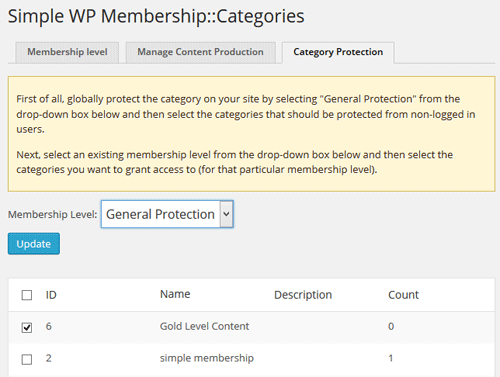
Step 2) Protect the Categories from Non Members
- Select “General Protection” from the level dropdown menu.
- Check all the boxes for the categories that you want to protect.
- Hit the “Update” button
This will protect all the categories from anyone. In the next step we will selectively allow certain membership levels access to some categories.
Step 3) Give Access To Selective Levels
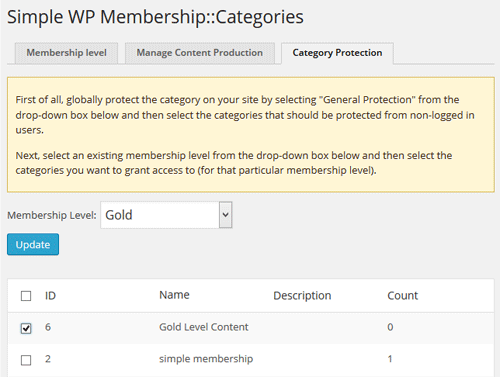
- Select the membership level that you want to grant access (The “Gold” level in this example)
- Check all the boxes for the categories that you want the “Gold” level to have access.
- Hit the “Update” button
This will give members from “Gold” membership level access to that category.
You can select your other membership levels and give those levels access to certain categories also.
Unprotect a Previously Protected Category
If you want to remove protection from a category that was previously protected, follow the steps below:
- Go to the Category Protection menu in the Simple Membership plugin.
- Select General Protection from the drop-down menu.
- On this page, any category with a checked box next to it is currently protected. To remove protection from a category, simply uncheck the box next to that category. Then click the Update button to save the changes.
After saving the settings, any category without a check mark will no longer be protected by the general category protection settings.