The Simple Membership Social Login Addon is a powerful extension designed to simplify the registration and login process for your site members. By allowing users to sign in with their existing social accounts (such as Google, Facebook), you remove friction, boost registration rates, and provide a seamless user experience.
This addon integrates perfectly with the core Simple Membership plugin, and offers a flexible setting to automatically create new member accounts upon first social login. This account creation feature can be enabled or disabled within the addon’s settings menu, giving you full control over your user base management.
Note: The SWPM Social Login Addon is currently in beta testing. While it’s functional and ready for use, some features may evolve, and minor bugs could occur. We appreciate your feedback – please report any issues via our support forum.
Table of Contents
- Download the Addon
- Install the Addon
- How Does the Social Login Addon Work?
- Configuring the Social Login Addon
- Viewing Connected Social Accounts
- Using Custom Social Login Links
- Testing Your Setup
Download the Addon
Click Here to download the free SWPM Social Login addon.
Install the Addon
- Click on the Add New menu under the plugins interface.
- Go to the Uploader tab and upload the swpm-social-login.zip file.
- Hit the Install Now button and then activate the addon.
How Does the Social Login Addon Work?
The SWPM Social Login Addon integrates with the Simple Membership plugin to let your members log in using their existing social accounts (example: Google, Facebook).
Here’s the basic flow:
1) Login Option on Your Site
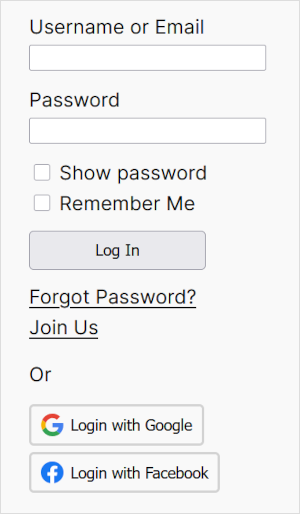
A “Login with Google” or “Login with Facebook” button will appear on the Simple Membership plugin’s login widget.
2) Existing Members
If the user’s social account email matches an existing membership account, they will be logged in automatically, and their membership will be linked to that social login for quicker access in the future.
3) New Users
If there is no existing account for the email, the addon can automatically create a new membership account (if you have enabled auto account creation in the settings).
The new account will be assigned to the default membership level you selected in the addon settings.
4) Behind the Scenes
The addon uses secure OAuth authentication provided by Google and Facebook.
Your site never handles the user’s social account password — only a secure token is exchanged to confirm their identity.
This way, members can skip creating and remembering new login credentials, while still being added to your membership system with the correct access level.
Configuring the Social Login Addon
Once you’ve installed and activated the SWPM Social Login Addon, you can configure its settings to enable social login features and customize user registration behavior.
Accessing the Addon Settings
- Log in to your WordPress admin dashboard.
- Navigate to the Simple Membership plugin menu in the sidebar.
- Click on Social Login to open the addon’s settings page.
General Settings
The addon includes a convenient feature to automatically create accounts for new users who authenticate via social login but don’t have an existing membership on your site. This streamlines the onboarding process and reduces user drop-off.
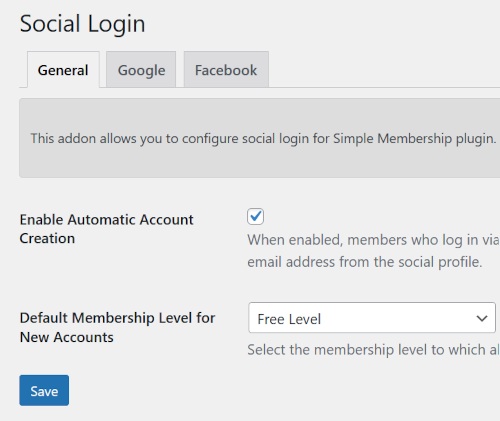
Enable Automatic Account Creation: Check this checkbox to activate the feature. When enabled, if a user logs in with a social provider (e.g., Google or Facebook) using an email that doesn’t match an existing account, a new membership account will be created automatically.
Default Membership Level: If automatic creation is enabled, select a membership level from the dropdown menu. This level will be assigned to all newly created users. Choose a level that aligns with your site’s default access (e.g., a free or trial level).
Social Provider Setup Guides (API Configuration)
To complete the setup, you will need to configure at least one social login provider (Google or Facebook).
Follow the step-by-step PDF guides below to obtain the required API credentials and add them to the addon settings:
Viewing Connected Social Accounts
The Social Login Addon keeps track of which social accounts are linked to a member’s profile.
For Site Admins
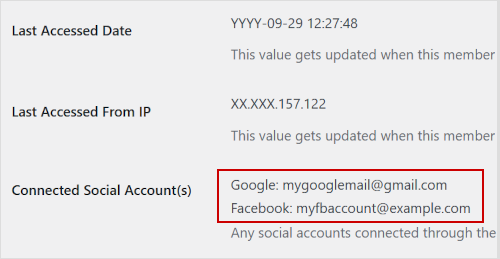
Connected social accounts for each member can be viewed in the Simple Membership → Members admin menu. When editing a member’s record, a list of their linked social accounts will appear in the profile details. Refer to the following screenshot for an example:
For Members
Members can see their own connected social accounts on the Edit Profile page within their account. This helps them confirm which social logins are linked and ensures they can use them for quicker sign-ins.
Using Custom Social Login Links
The Social Login Addon also allows site admins to create their own social login or registration links. These links can be placed on the registration page, login page, or anywhere else on your site (such as in buttons or menus).
Google Login or Registration
Use the following link structure to create a link for Google:
https://www.yourdomain.com/?swpm_social_login=google
Facebook Login or Registration
Use the following link structure to create a link for Facebook:
https://www.yourdomain.com/?swpm_social_login=facebook
You can use these links directly, or wrap them inside buttons or custom elements to match your site’s design.
Testing Your Setup
After configuring your chosen social login provider (Google or Facebook):
- Go to your site’s membership login page.
- You should now see a “Login with Google” or “Login with Facebook” button.
- Click the button and log in with a valid social account.
- If the email matches an existing member account, you should be logged in automatically.
- If no account exists and Automatic Account Creation is enabled, a new account should be created at the membership level you selected.
- If Automatic Account Creation is not enabled, login will be blocked until the user registers manually.