If you are looking to establish a website where memberships expire on a fixed calendar-year basis (such as a platform for a school), the guidelines detailed on this page will be beneficial for you.
In this guide, I have laid down the configurations that can be utilized to facilitate a calendar-year membership cycle using the Simple Membership Plugin. Setting up a calendar-year membership can harmonize the renewal process, aligning everyone’s membership duration to a common time-frame, such as a school year or fiscal year, simplifying management and renewals.
Note: This guide may not cover every possible scenario but aims to serve as a helpful reference for many situations.
Table of Contents
Membership Level Configuration
To establish a calendar year membership, it’s necessary to utilize the “Fixed Date Expiry” option. This entails creating a distinct membership level for every individual year. In the following, I will describe this procedure using a hypothetical setup for the years 2024 and 2025.
Initiating the process, I’ll create a membership level denoted as “Year-2024,” assigning it a Fixed Date Expiry set to conclude on December 31, 2024, which will be specified in the ‘Access Duration’ field. Similarly, subsequent years will have their separate membership levels configured accordingly, helping to maintain a structured and orderly membership system.

Anyone who wants to join this membership will be enrolled in the Year-2024 membership tier. Membership access will terminate on the specified date, which, in this case, is the end of the year.
Next, we need to handle the renewal scenario so users who renew can advanced to the upcoming year’s membership level.
Handling Renewal for Calendar Year Membership
I will create a new membership level denoted as “Year-2025,” assigning it a Fixed Date Expiry set to conclude on December 31, 2025.
I will proceed to create a payment button specifically for the renewal of this membership level. Any member who pays the renewal fee will be elevated to the new membership level. Their new account expiry will be according to what is specified in this newly created membership level.
Refer to our documentation for creating a renewal button to understand the process.
Bulk Upgrade Members
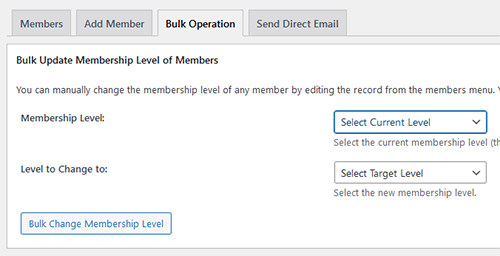
In some situations, utilizing the bulk upgrade feature to elevate members from one level to another can facilitate this type of setup.
For instance, as the calendar year draws to a close, you might wish to automatically upgrade all users to the forthcoming year’s membership level if you are not charging money for renewal. This can be achieved through the bulk upgrade function available in the Members -> Bulk Operation menu.