The Simple Membership plugin includes an integrated feature for adding a “Terms and Conditions” and a “Privacy Policy” to your membership site. You have the flexibility to enable either one or both of these options, depending on your site’s requirements.
Table of Contents
- Member Agreement Required
- Configuring the 'Terms and Privacy Policy' Features
- Membership Registration with 'Terms and Conditions' Enabled
- Using the Form Builder Addon
Member Agreement Required
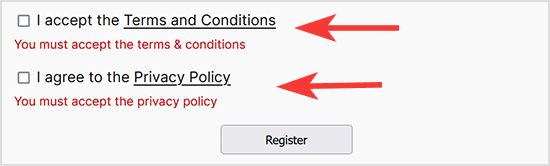
When you enable the Terms and Conditions and/or Privacy Policy options, your customers must agree to these terms before they can complete their membership registration. The checkboxes for agreement, along with links to your Terms and Privacy Policy pages, will be displayed just above the submit button on the registration page.
This feature is particularly useful if you have specific conditions that members must agree to before creating an account. For example, you may require members to acknowledge that they will not share their account information with others. Additionally, enabling the ‘Privacy Policy’ option allows you to clearly communicate how you will manage and protect customers’ private information.
Configuring the ‘Terms and Privacy Policy’ Features
Locating the ‘Terms and Conditions’ Settings
- Click on the ‘Settings‘ menu of WP Membership.
- Click the ‘Advanced Settings‘ tab once you are in the ‘General Settings‘ menu.
- You will see a section titled ‘Terms and Conditions‘. This section is where you can configure ‘Terms and Conditions‘ along with a ‘Privacy Policy‘ that your users must accept at the time of registration.

Configuring ‘Terms and Privacy Policy’
You can choose to enable both ‘Terms and Conditions’ and ‘Privacy Policy’ on your website, or opt to enable just one. Follow the instructions below to configure these settings on your WordPress site.
To enable ‘Terms and Conditions‘ on your site:
- Mark the ‘Enable Terms and Conditions‘ checkbox.
- Paste the URL of your ‘Terms and Conditions‘ in the field next to ‘Terms and Conditions Page URL‘.
- Ensure you ‘Save Changes‘.
To enable a ‘Privacy Policy‘ on your site:
- Mark the checkbox next to ‘Enable Privacy Policy‘.
- Enter the URL of your ‘Privacy Policy‘ page in the field next to ‘Privacy Policy Page URL‘.
- Ensure you ‘Save Changes‘.
Membership Registration with ‘Terms and Conditions’ Enabled
Once you enable both features, two checkboxes will appear at the bottom of the registration form. Customers can click on ‘Terms and Conditions’ to view your Terms and Conditions page, and on ‘Privacy Policy’ to access your Privacy Policy page. If either ‘Terms and Conditions’ or ‘Privacy Policy’ is enabled, the corresponding checkboxes become mandatory. Customers must check these boxes to agree to your terms and policies before they can complete the registration process.
Example: Registration Form with Terms and Conditions

Example: Mandatory Checkboxes
A user must agree to your Terms and Privacy Policy before they can register for a membership.
Using the Form Builder Addon
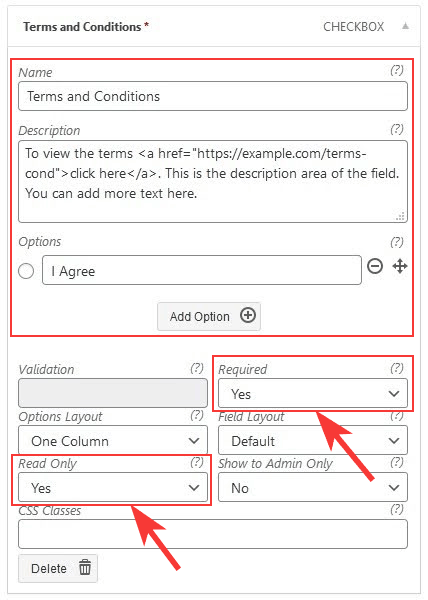
If you are using the Form Builder addon to customize the member registration form with custom fields, you can easily add Terms and Conditions and Privacy Policy checkboxes using that addon.
The Form Builder addon allows you to create any checkboxes for Terms and Conditions, giving you flexibility over what checkboxes you display and where they appear on the form. To implement this, simply add a checkbox field and mark it as “required.” This ensures that users must agree to the terms before they can complete the registration process.
Refer to the following screenshot for an example of how to create a “Terms” checkbox field.